Creating and editing processes

In the process's add and edit -view the following information can be found that you should pay attention to:

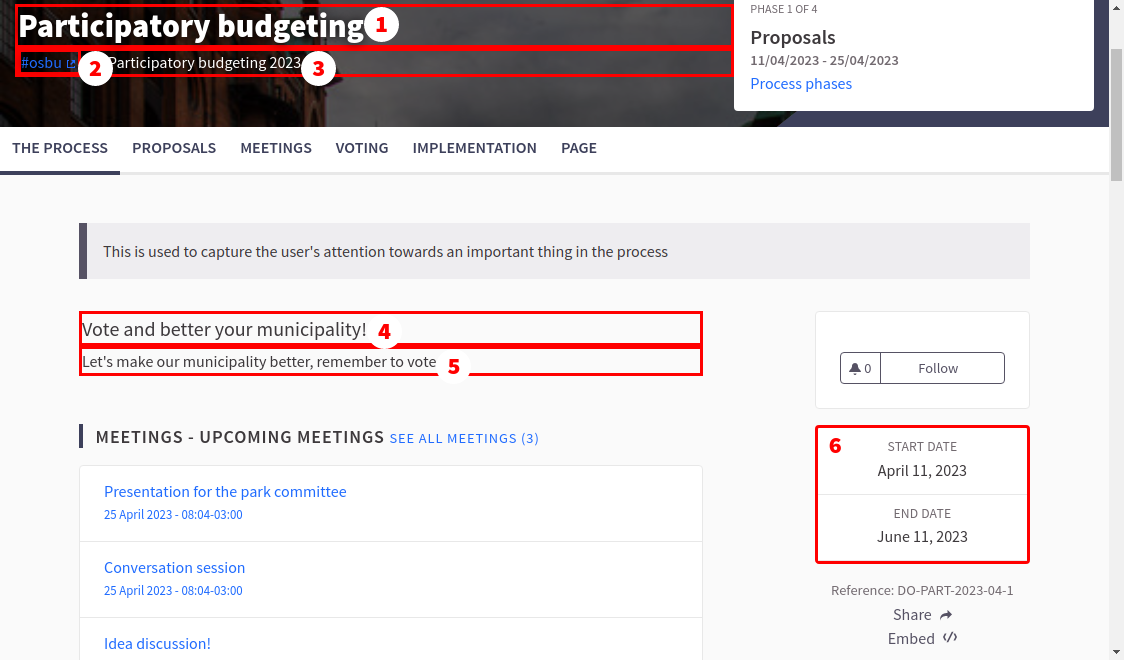
  • Title - Every process has to have a title. This is shown on the main page when listing processes in the so called content-cards, and also in the process's main page. Pay attention to the recommendations described in the section "The length of titles and descriptions". For the process's main page, the content is shown as presented on the first image below, highlighted with the number 1.
  • Subtitle - Every process has to have a subtitle. This is shown on the process's page under the title, which is presented on the first image below, highlighted with the number 3.
  • URL-slug - Every process has to have a URL-slug. This is used to scope a certain process in the browser's domain. Only letters from a-z, hyphens (-) and underscores (_) are allowed in the URL-slug. You can form the URL-slug like the following:
    1. Copy the title field's text as the base of the URL-slug.
    2. Replace all the special characters with their corresponding latin alphabet character. So replace "ä" and "å" with the "a" -character and "ö" with the "o" -character
    3. Change all the uppercase (A-Z) letters to lowercase (a-z) letters.
    4. Replace the spaces with a dash "-" -character.
  • Hashtag - Here you can define which hashtag is used for the process in social media. This is shown in the process page under the title so it links the user to Twitter, as presented in the first image below, highlighted with a number 2.
  • Start date - The date when the process starts. This is an informative field, which indicates the starting time of the process, but it does not affect the phases' dates described in the "Process's phases" -section. This is shown on the main page's sidebar located on the right side, as presented on the first image below, highlighted with the number 6.
  • End date - The date when the process ends. This is an informative field, which indicates the ending time of the process, but it does not affect the phases' dates described in the "Process's phases" -section. This is shown on the main page's sidebar located on the right side, as presented on the first image below, highlighted with the number 6.
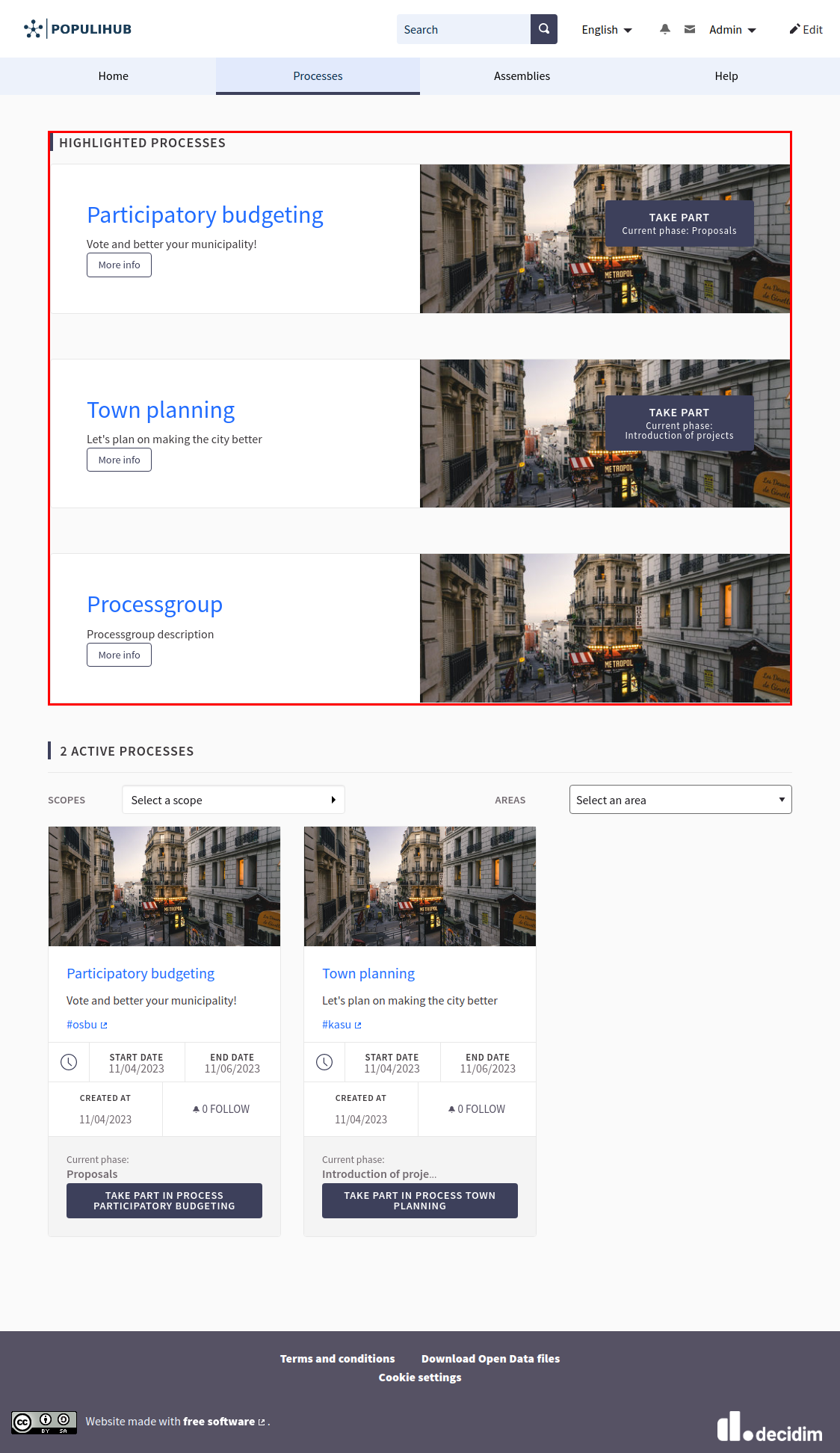
  • Promoted - This field defines which processes are promoted on the processes site highlighted above other processes. This is recommended to be defined to processes which you want to highlight for a short time. You should not leave this feature on permanently so the list of promoted processes does not grow too long. This is presented in the fourth image below.
  • Short description - This is shown on the main page, the process's content-cards and process's main page under the topbar. Process's short description should not be too long, so it fits to the card shown on the page, pay attetion to the recommendations described in the section "The length of titles and descriptions". For the process's main page this is presented on the first image below, highlighted with the number 4.
  • Description - This is shown on the process's main page under the short description. The text you define here can be as long as you want, because this is shown on the content area which has lots of space for content. This is presented on the first image below, highlighted with the number 5.
  • Home image - It is recommended to add this to the processes, because it is shown on the process's card. Otherwise a background color is shown which makes the card look empty. A so called "box image" is defined here, whose image size is defined in the section "Image sizes".
  • Banner image - It is recommended to add this to the processes, because it is shown on the process's main page's top section. Otherwise a grey background is used, which does not look too tempting for the user. A so called "main image" is defined here, which image size is defined in the section "Image sizes".
  • Process group - Defines which process group the process belongs to. Process groups are described in the section "Process groups". This is seen as the process listed below the specific process group.
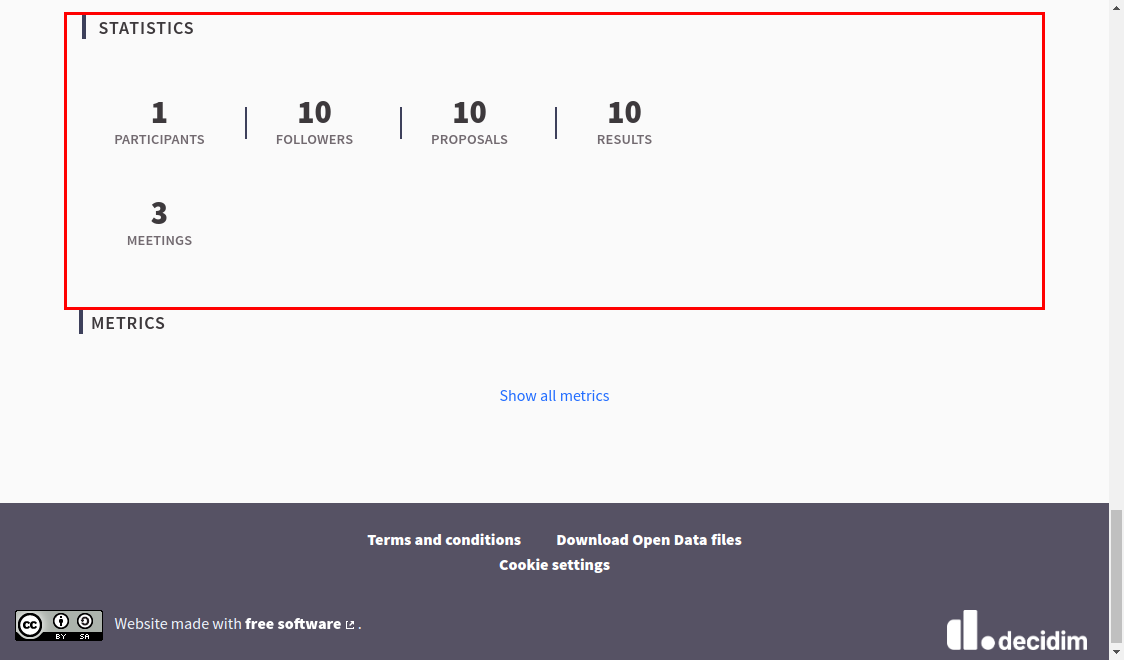
  • Show statistics - Defines if the process's public statistics are shown on the main page of the process. The statistics can be seen on the process's main page. This is presented on the second image below.
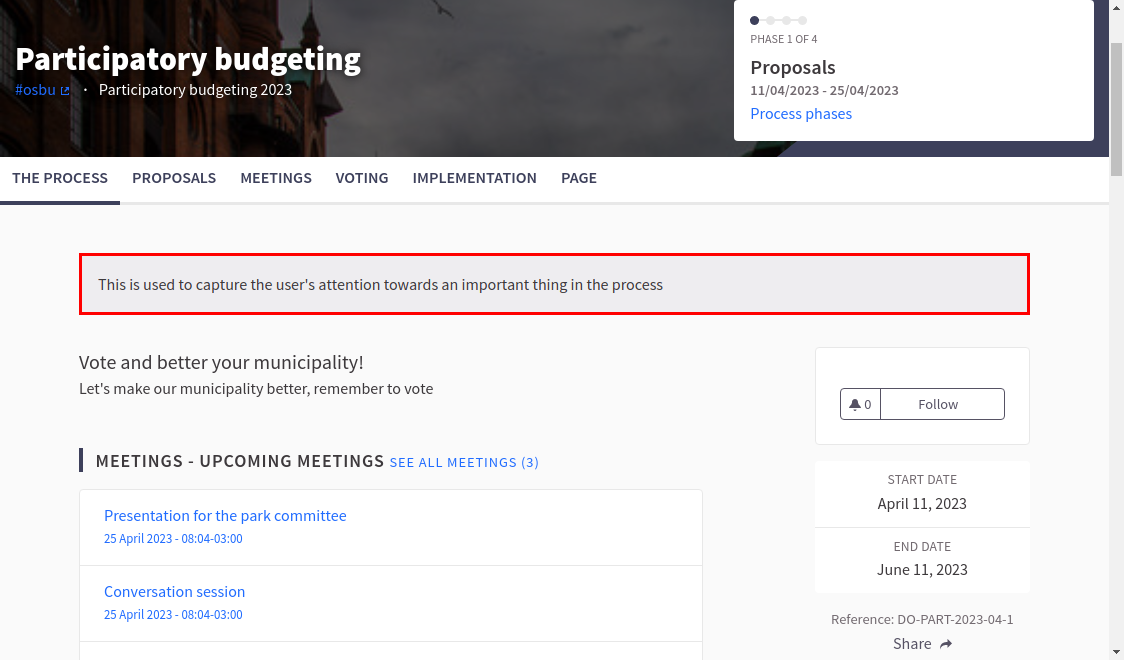
  • Announcement - In this field you can define a highlighted announcement which is shown on every page of the process. You can use this for short announcements, that inform something important for the user. This is presented on the third image below.
Process main page
Process's statistics
Process's announcement
Promoted processes

Other than the information mentioned above are not essential with a small amount of data regarding the daily management of the processes. These can be essential in the future, when the amount of information gets bigger. The additional information are the following:

  • Promoter group
  • Organization area
  • Scope metadata
  • Scopes enabled and scopes