The management of process groups
The management of the process groups is done from the dashboard's "Process groups" -section. Process groups can be added from the process group listing -view's "New" action button.
Existing process groups can be managed from their action buttons. The following action buttons can be found for process groups:
-
Edit - This button allows you to edit a process group.
-
Preview - This button allows you to preview the process group on the website.
-
Delete - This button deletes the process group. Deletion happens after a confirmation prompt, so in case you press the delete button by accident, the rights do not get deleted right away.
Creating and editing a process group
In the add and edit -view of the process group there is the following information you have to pay attention to:
-
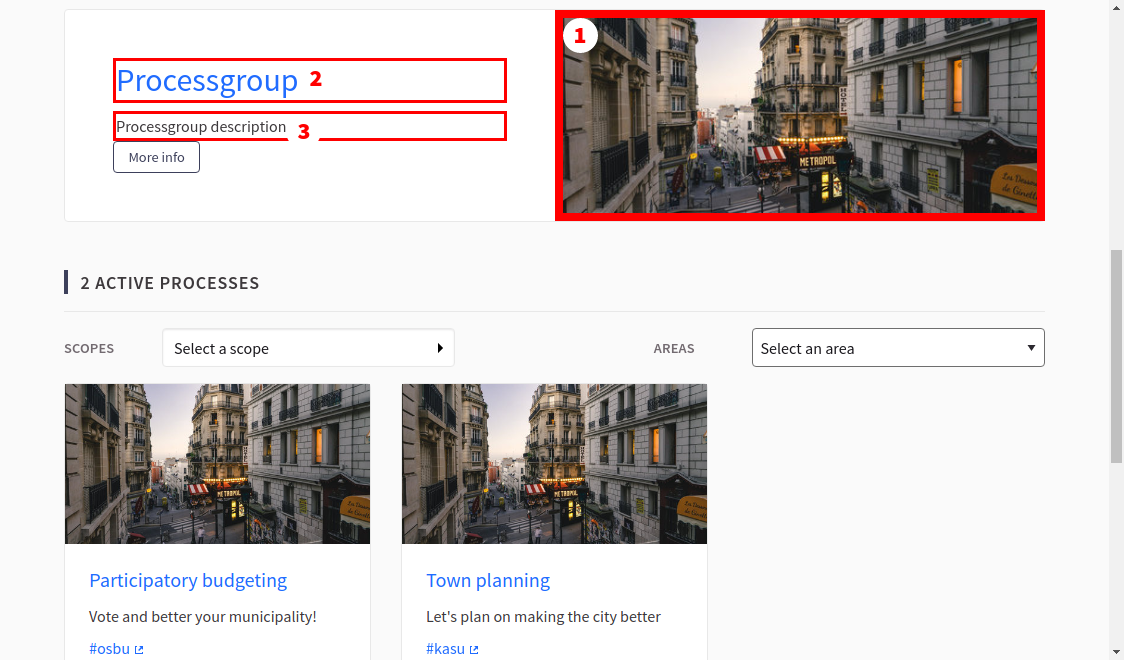
Name - All the process groups must have a name. This is shown on the website when listing process groups (highlighted in the image below with the number 2). Pay attention to the recommendations described in the "The length of titles and descriptions" -section."
-
Description - All the process group must have a description. This is shown under the process group's name on the process page, but not on the front page of the system. The description of the process group needs to be moderate, so it fits to the content-card shown on the page (highlighted on the image below with the number 3). Pay attention to the recommendations described in the "The length of titles and descriptions" -section.
-
Included processes - Here you can choose which processes should be under this group. For singular processes you can define a group, which it belongs to, so you do not necessarily have to choose anything to this field. If you want to choose multiple groups, keep the CTRL -key pressed when selecting processes.
-
Image - This is recommended to be added to the processes, because it is shown on the website's process group's content-card. Otherwise a background color is used, which makes the card look empty. Here you define a so called "box image", whose image size is described in the "Image sizes" -section (highlighted in the image below with the number 1).)