Empower people, Enable participation
Mainio Tech provides modern, effective solutions for participation and collective decision-making. We are a team of participation experts at your service!

The basic idea of the structure of the dashboard is the following:
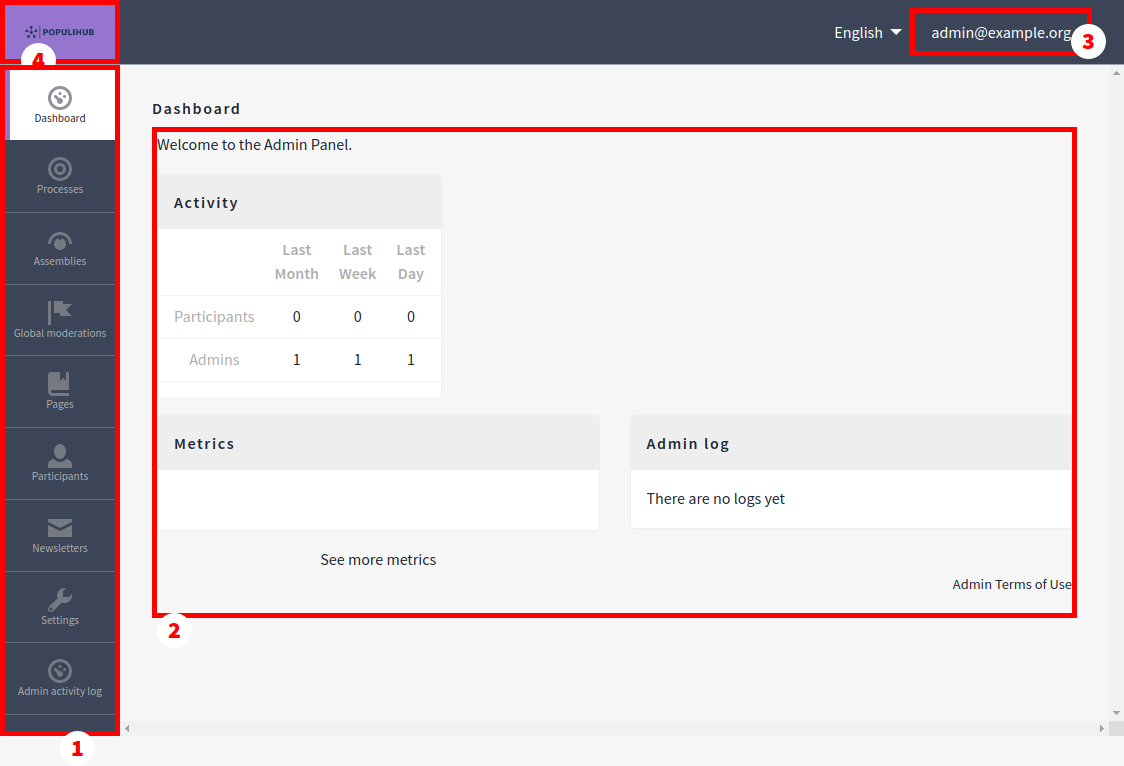
You can navigate the dashboard by using the navigation bar. Each section's actions are usable in their actual view.
You can navigate back to the website by clicking the organization ID located in the top left corner.
You can sign out from the dashboard from the account-actions found in the top right corner. Sign out is done with opening the account-action dropdown and choosing "Logout",
When a certain section of the dashboard is selected, you can see the selection's view on the right side of the navigation bar (highlighted in the image below with the number 1). In the view there is a listing of the content for the section, for example "Processes" (highlighted in the image below with the number 2). If the content is not yet added, the listing -view is empty.
Each section's listing differs by its manageable content. Mutual for all sections are the action buttons, which are found from the right side of the content column (highlighted in the image below with the number 3). With the action buttons you can manage the settings and content.
In the top right corner of the view, you can find the whole list's actions, and also these differ for each section. From these action buttons you can for example create new content or export the list to an external file format (highlighted in the image below with the number 4).
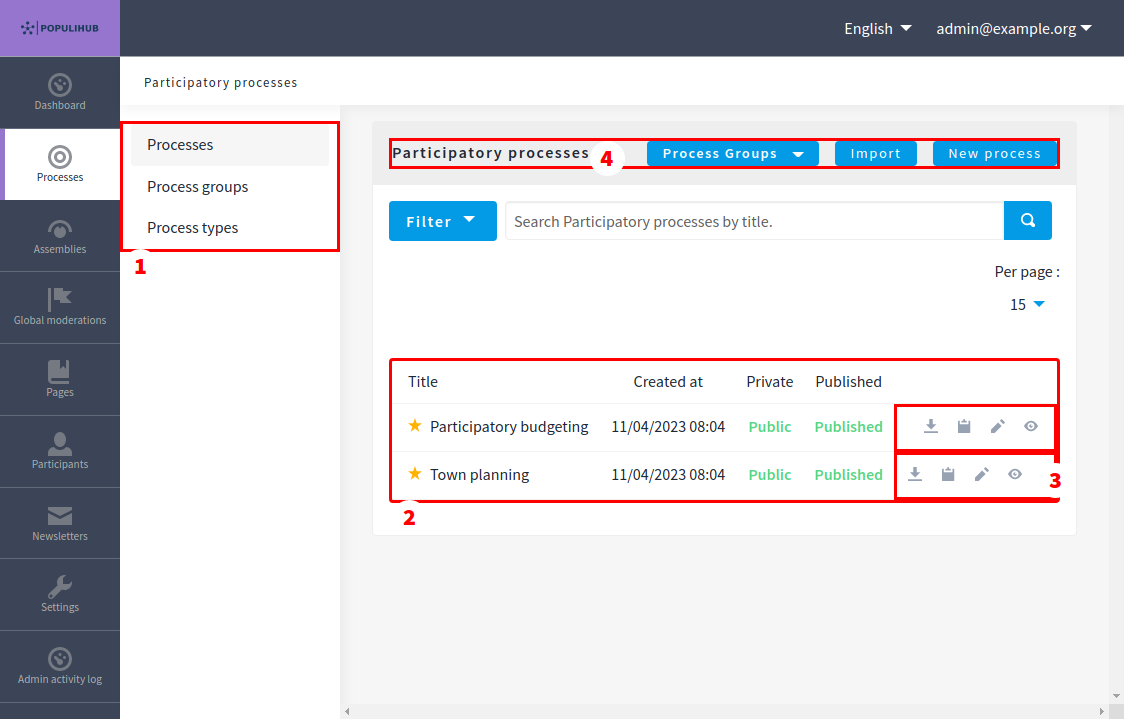
Clicking the titles of the content in the dashboard's listing -view differ from each other based on the content. Some titles open the content's editing view and others may open the preview. We recommend using the action buttons when managing the content in the dashboard.
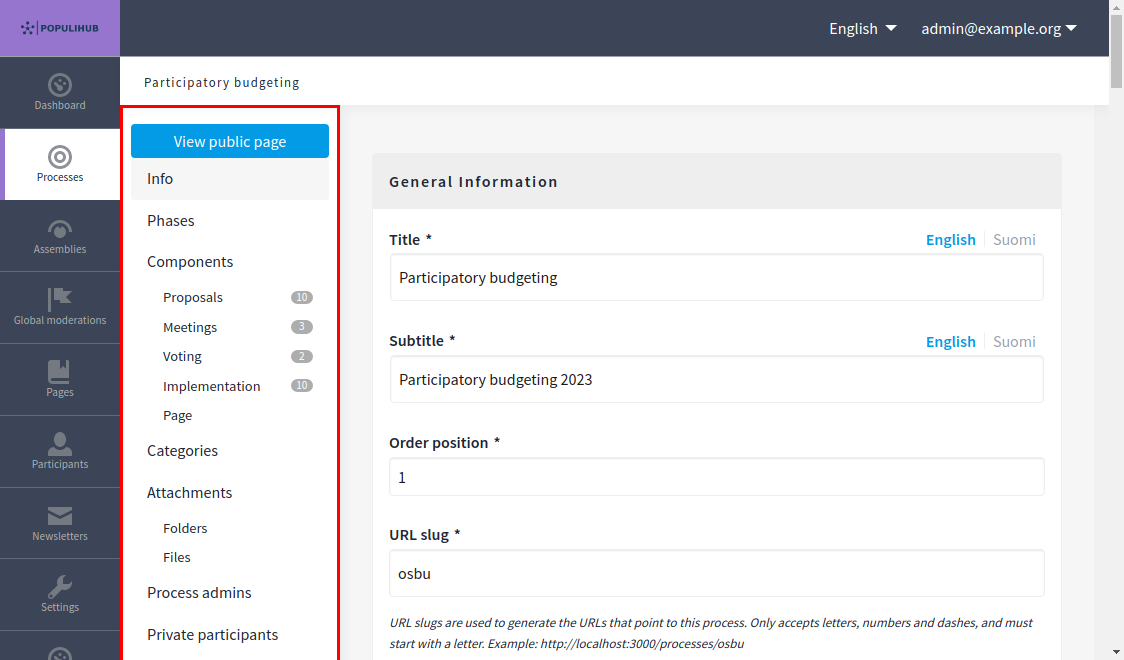
When some section of the dashboard is selected, the subnavigation is shown on the right side of the main navigation. In that navigation you will find the actions that the content has (highlighted in the picture below). With content in this context we mean for example a process or a process group. From the view of the content you can find its action buttons, like add and edit -forms.
All-in-one digital platform for all your participation needs. Easy-to-use and reliable, so you can spend more time engaging with people.

Mainio Tech provides modern, effective solutions for participation and collective decision-making. We are a team of participation experts at your service!